Before you do step change the package name, you must do this step for firebase project configuration
Vist Firebase console: https://console.firebase.google.com

Please register or log in first and then select create new project. In the dialog window enter the name of the project that will be created and the contents of the state and then click the create project to continue.
1) Add a new project
2) Get started by adding firebase to your project. Select the flutter icon.
3) The easiest way to get you started is to use the FlutterFire CLI.
Before you continue, make sure to:
- Install the Firebase CLI and log in (run
firebase login) - Create a Flutter project (run
flutter create)
4) In firebase CLI Install standalone binary and npm
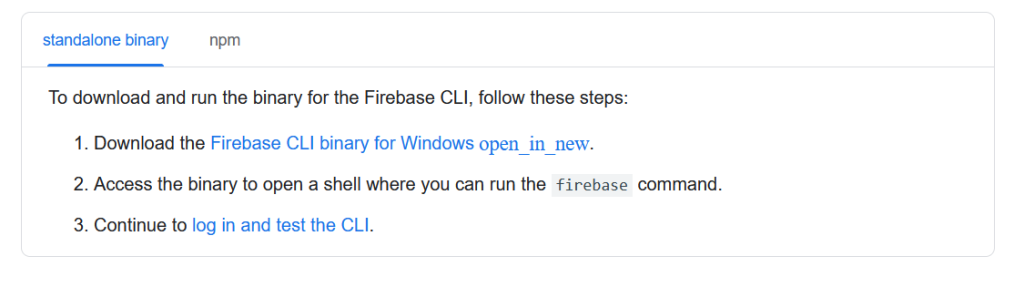
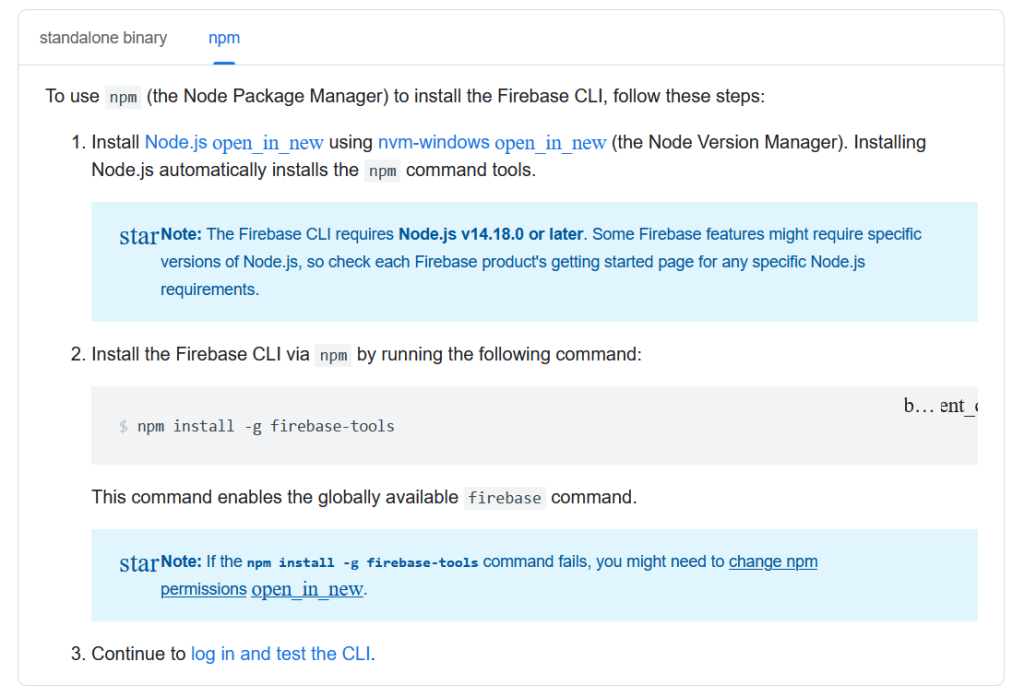
5) Log in and test the Firebase CLI
firebase login
firebase projects:list
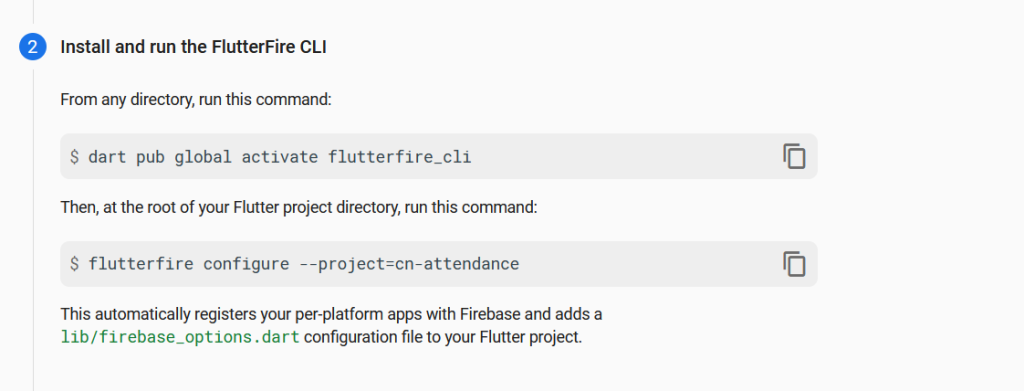
6) Install and run the FlutterFire CLI
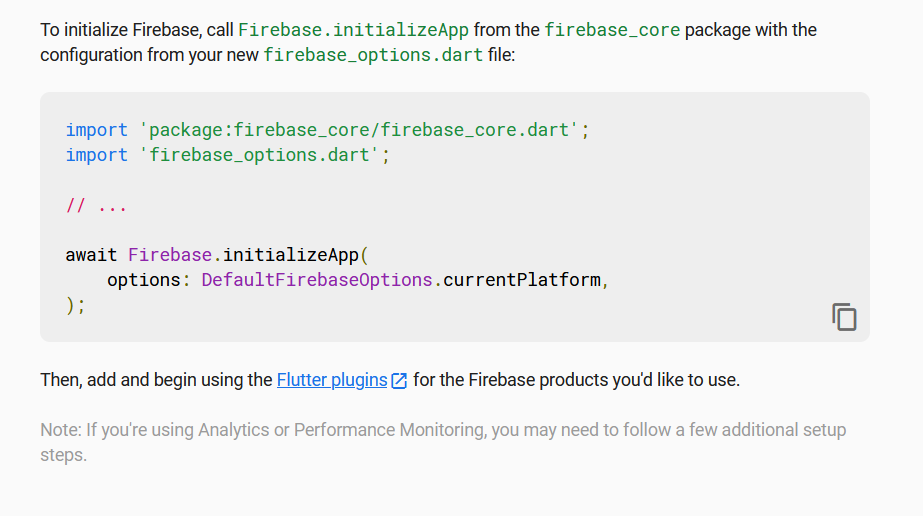
7) Initialize firebase
Add your SHA1 Key
To add an SHA-1 key to your Firebase project for Google Login, follow these steps:
Step 1: Get Your SHA-1 Key
The method to retrieve your SHA-1 key depends on how you’re developing your app:
For Debug SHA-1 (Android Studio)
- Open a terminal in Android Studio.
- Run the following command:
./gradlew signingReport - Look for
SHA1under thedebugsection.
For Release SHA-1 (Production APK)
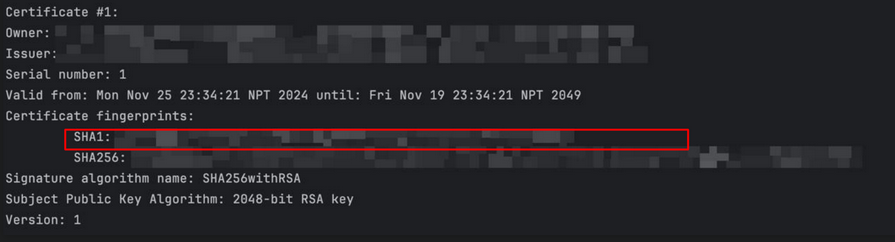
- If using a release keystore, run:
keytool -list -v -keystore path-to-keystore.jks -alias your-key-alias -storepass your-store-password -keypass your-key-password- Replace
path-to-keystore.jkswith your actual keystore file path. - Replace
your-key-alias,your-store-password, andyour-key-passwordwith your credentials.
- Replace
For Play Store (If Using App Signing by Google Play)
- Go to Google Play Console.
- Navigate to Setup > App Integrity.
- Copy the SHA-1 certificate fingerprint.
Step 2: Add SHA-1 Key in Firebase Console
- Go to Firebase Console.
- Select your project.
- Click on the settings icon ⚙️ > Project settings.
- Go to the “General” tab.
- Scroll down to “Your apps” and select the Android app you registered.
- Under “SHA certificate fingerprints,” click “Add Fingerprint.”
- Paste the SHA-1 key you obtained earlier.
- Click Save.