Category: flutter
Google Adsense
To generate your google ad sense id please follow this link and follow the guidelines.
https://developers.google.com/admob/flutter/quick-start
Once you have generated your keys:
Replace the values of the keys on lib/utils/appconstants.dart file.
Build and release iOS app
Build and Release android app
https://docs.flutter.dev/deployment/android
After following the above steps, you must generate sha1 key for google login to work.
In order to generate the SHA1 key, go to terminal and run the following command:
To add an SHA-1 key to your Firebase project for Google Login, follow these steps:
Step 1: Get Your SHA-1 Key
The method to retrieve your SHA-1 key depends on how you’re developing your app:
For Debug SHA-1 (Android Studio)
- Open a terminal in Android Studio.
- Run the following command:
./gradlew signingReport - Look for
SHA1under thedebugsection.
For Release SHA-1 (Production APK)
- If using a release keystore, run:
keytool -list -v -keystore path-to-keystore.jks -alias your-key-alias -storepass your-store-password -keypass your-key-password- Replace
path-to-keystore.jkswith your actual keystore file path. - Replace
your-key-alias,your-store-password, andyour-key-passwordwith your credentials.
- Replace
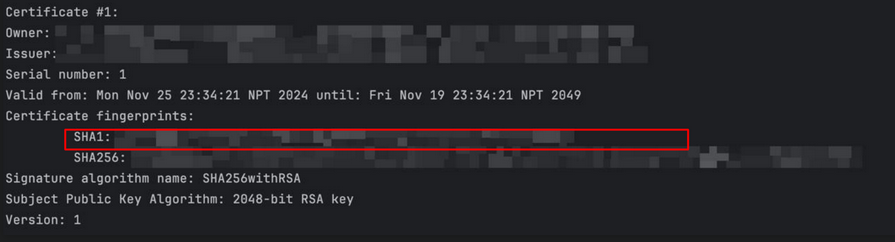
For Play Store (If Using App Signing by Google Play)
- Go to Google Play Console.
- Navigate to Setup > App Integrity.
- Copy the SHA-1 certificate fingerprint.
Step 2: Add SHA-1 Key in Firebase Console
- Go to Firebase Console.
- Select your project.
- Click on the settings icon ⚙️ > Project settings.
- Go to the “General” tab.
- Scroll down to “Your apps” and select the Android app you registered.
- Under “SHA certificate fingerprints,” click “Add Fingerprint.”
- Paste the SHA-1 key you obtained earlier.
- Click Save.
Now your app should be able to authenticate users using Google Sign-In! 🚀
App Font
Currently there is only font being used in this application. It is:
- google_sans.ttf
Fonts are located under <package_name>/assets/fonts
Image Assets
The image asset consists of the splash image and other image component inside the app, to change it:
- Open <package_name>/assets/icons and replace with your image or icon.
Strings
Most of the strings in the application are dynamic that is they come from the server itself. If you wish to change some of the static texts then you can do so by going under each views and changing it from there. All of the views are placed under
libs –> screen
Change App Colors/Text Colors
All the colors used in the app are placed under the lib–> utils–> appconstants.dart file
Enter the desired color hex values inside these files and it will change your gradient colors.
Other colors are defined on the views itself. You can go to each views and change the color to the desired one.
Server URL
Navigate to:
lib/data/remote/urlconstants.dart
and change the url in prod variable.
App Logo
To change the App Logo, follow the following steps
- open your pubspec.yaml
- upload the desired image and set the path to image_path under flutter_icons
- After that open terminal
- run the below code
flutter pub get
flutter pub run flutter_launcher_icons:main